Under the Hood #8 Linux Namespaces: How Containers Actually Become Isolated
Containers aren't separate virtual machines; they are Linux processes isolated by namespaces. Learn how PID, network, and mount namespaces work under the hood, and master container troubleshooting using nsenter and lsns.
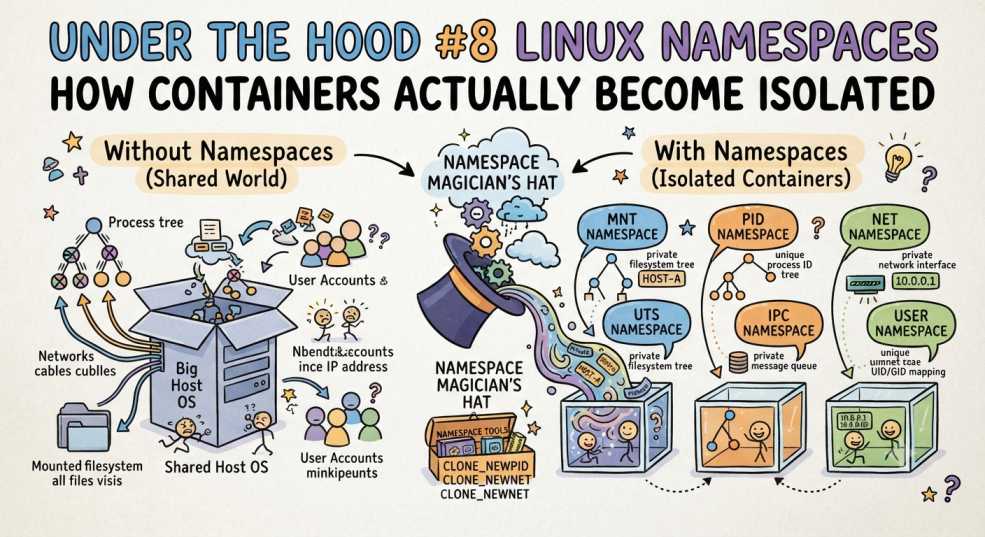
Containers look like separate machines from the outside.
They have their own processes.
Their own network interfaces.
Their own hostname.
Their own filesystem view.
Sometimes, even a different user namespace where root inside the container is not root on the host.
But underneath all of that, they are still Linux processes running on the same kernel.
So how does Linux make one process believe it is living inside a completely different system?
The answer is Linux namespaces.
And once you understand namespaces, a lot of container behavior that normally feels like magic starts making sense.
Welcome to DevOps Inside, where we go beyond the surface to understand how modern DevOps systems actually work under the hood.
The Container Is Not the Isolation
When you run:
docker run -it nginx
or deploy:
apiVersion: v1
kind: Pod
...
it is easy to imagine that Linux creates a small isolated machine.
It doesn't.
There is still one Linux kernel underneath.
The container gets a carefully constructed view of the system using several Linux mechanisms:
Container
   │
   ├── Namespaces → What the process can see
   │
   ├── cgroups → How resources are controlled
   │
   ├── Capabilities → Which privileged operations are allowed
   │
   ├── seccomp → Which system calls are restricted
   │
   └── LSMs → Additional security controls
          │
          ▼
     Same Linux Kernel
Namespaces are responsible for one particularly important part:
They isolate the view of kernel-managed resources that processes see.
That distinction matters.
A namespace does not give a container another kernel.
It gives processes a different view of the same kernel.
What Is a Linux Namespace?
A Linux namespace wraps a particular type of system resource so that processes inside the namespace see an isolated instance of it.
Linux currently provides these namespace types:
| Namespace | What it isolates |
|---|---|
| PID | Process IDs and process hierarchy |
| Mount | Filesystem mount view |
| Network | Interfaces, routes, sockets and network configuration |
| UTS | Hostname and NIS domain name |
| IPC | Inter-process communication resources |
| User | User and group IDs and capabilities |
| Cgroup | View of the cgroup hierarchy |
| Time | System clocks visible to processes |
The important idea is simple:
The process still runs on the same machine, but Linux changes what that process is allowed to see.
That is the foundation on which containers are built.
PID Namespaces: How a Container Gets Its Own Processes
Start with processes.
On the host, you might see:
ps aux
and get something like:
PID    CMD
1      /sbin/init
2451   containerd
3127   nginx
Inside a container, the same underlying process can appear with a completely different PID.
For example:
Host
  PID 3127 → nginx

Container
  PID 1    → nginx
The process hasn't magically moved to another machine.
It is the same Linux process being viewed from different PID namespaces.
You can inspect the namespace directly:
readlink /proc/3127/ns/pid
You can also inspect all namespaces associated with a process:
ls -l /proc/3127/ns/
You may see entries such as:
cgroup -> cgroup:[4026531835]
ipc    -> ipc:[4026531839]
mnt    -> mnt:[4026531840]
net    -> net:[4026531993]
pid    -> pid:[4026531836]
time   -> time:[4026531834]
user   -> user:[4026531837]
uts    -> uts:[4026531838]
You can get a more readable summary with:
lsns -p 3127
This is one of the easiest ways to stop thinking about a container as a mysterious object and start looking at the actual Linux namespaces attached to its processes.
PID 1 Is Special
The first process created inside a PID namespace becomes PID 1 in that namespace.
That process has a special responsibility.
If child processes exit and become zombies, something needs to reap them.
This is directly connected to the problem we covered in Under the Hood #7: Zombie Processes.
The important point is that PID 1 does not automatically make an application a good init process.
If an application is not designed to reap children properly, using a minimal init such as tini can be appropriate in environments where it is needed.
The fix depends on the actual process and container setup. Don't assume that simply adding an init process solves every zombie problem.
Pods and Containers Don't Always Get Their Own Namespaces
This is where container theory becomes Kubernetes reality.
A Kubernetes Pod is not simply a collection of completely independent containers.
Some namespaces can be shared between containers in the same Pod, while others normally aren't.
Network namespace
Containers in the same Pod normally share a network namespace.
That is why containers in the same Pod can communicate through:
localhost
They are using the same network namespace.
PID namespace
Containers do not normally share a PID namespace.
Kubernetes can enable this with:
spec:
  shareProcessNamespace: true
When enabled, processes from the containers in that Pod become visible to each other.
User namespace
Kubernetes normally uses the host user namespace.
A Pod can opt into a separate user namespace with:
spec:
  hostUsers: false
This allows UID 0 inside the container to be mapped differently from root on the host.
Host namespaces
Kubernetes can also deliberately use host namespaces.
For example:
spec:
  hostNetwork: true
  hostPID: true
  hostIPC: true
These settings remove some of the normal namespace isolation.
This is why checking the Pod specification is important before assuming exactly which namespaces a container has.
Mount Namespaces: Why the Filesystem Looks Different
Now consider the filesystem.
On the host, you might have:
/
├── etc
├── var
├── home
├── usr
└── opt
Inside a container, the process can see a different mount hierarchy.
That's the job of the mount namespace.
Two processes can therefore see different mount points even though they are running on the same host.
You can inspect a process's mount namespace with:
readlink /proc/3127/ns/mnt
And inspect its mounts with:
cat /proc/3127/mountinfo
This is extremely useful when debugging a situation such as:
"The directory exists on the node, but it doesn't exist inside my container."
The first question should be:
Are you looking at the same mount namespace?
A volume, bind mount, or container filesystem can make the view inside the container very different from what you see on the node.
A Useful Namespace Debugging Trick
Suppose you know the PID of a container process.
Instead of only asking:
ls /some/path
from the host, inspect the process's mount namespace:
nsenter -t <PID> -m ls /some/path
Now you're executing the command using the target process's mount namespace.
That can immediately tell you whether the problem is:
Host filesystem
        ↓
Mount namespace
        ↓
Container filesystem view
or something else entirely.
Network Namespaces: Where the Container's Network Actually Lives
A network namespace isolates networking state such as:
- network interfaces
- IP addresses
- routing tables
- firewall rules
- sockets
- ports
- network-related sysctls
Inside a container, you can run:
ip addr
and see interfaces that don't appear in the same way from another namespace.
On a typical Linux container setup, a virtual Ethernet pair can connect the container's network namespace to another network namespace.
Conceptually:
Container Network Namespace
        │
      veth
        │
      veth
        │
Host / CNI Network
        │
      Network
This is a common Linux networking pattern, not a statement that every Kubernetes CNI implements networking in exactly this way.
The important idea is:
The container has its own network view, and something has to connect that isolated network environment to the rest of the system.
Debugging a Container Network Problem
Suppose:
Node → Service     works
Container → Service  fails
Don't immediately assume the application is broken.
First inspect the target network namespace:
nsenter -t <PID> -n ip addr
Then:
nsenter -t <PID> -n ip route
You can test connectivity from that namespace as well:
nsenter -t <PID> -n curl http://<service>
This command runs curl from the environment where nsenter is executed while using the target network namespace, so the required utility must exist on that filesystem.
If the namespace-level network test works but the application still fails, the problem may be more serious in the stack:
Network namespace
       ↓
Routing
       ↓
DNS / Service
       ↓
Application
This gives you a much narrower place to investigate.
UTS Namespace: Why Your Container Has Its Own Hostname
The UTS namespace is responsible for isolating the hostname and NIS domain name seen by processes.
That's why:
hostname
inside a container can return a different hostname from the host.
It's a small namespace, but it demonstrates the same principle:
same kernel, different view.
IPC Namespace: Keeping IPC Resources Separate
The IPC namespace isolates several forms of inter-process communication, including System V IPC objects and POSIX message queues.
This prevents unrelated processes from automatically sharing the same IPC resources.
You can inspect IPC namespaces with:
lsns -t ipc
For most Kubernetes troubleshooting, this is less visible than PID, network or mount namespaces, but it is still part of the Linux isolation model.
User Namespaces: When Root Isn't Really Root
This one is especially important for container security.
Inside a traditional container, you might see:
id
and get:
uid=0(root) gid=0(root)
That does not automatically mean the process has unrestricted root privileges on the host.
Linux user namespaces can map user and group IDs differently between namespaces.
For example:
Inside user namespace
UID 0
  │
  ▼
Mapped to an unprivileged UID
outside the namespace
Kubernetes supports user namespaces for Pods through:
spec:
  hostUsers: false
User namespaces became stable in Kubernetes 1.36.
They can reduce the impact of a container process running as UID 0 because "root inside" does not necessarily map to "root outside."
But user namespaces are not a magic security switch. Kubernetes also has constraints around which host namespaces and filesystem configurations can be combined with them.
Namespaces Are Not a Security Force Field
This is an important distinction.
Namespaces provide isolation.
They do not provide complete container security by themselves.
Container security also involves mechanisms such as:
Namespaces
    +
cgroups
    +
Linux capabilities
    +
seccomp
    +
AppArmor / SELinux
    +
Filesystem and securityContext controls
For example, a privileged container can receive broad Linux capabilities and bypass restrictions that would normally apply to an ordinary container.
That's why:
securityContext:
  privileged: true
is fundamentally different from simply creating a container in a namespace.
The correct mental model is not:
"Namespaces make containers secure."
It is:
Namespaces provide isolation, while multiple kernel and Kubernetes security controls work together to constrain what the process can do.
Namespaces vs cgroups
This distinction causes a lot of confusion.
Namespaces answer:
What can this process see?
For example:
Which processes?
Which network interfaces?
Which mounts?
Which hostname?
Which users?
cgroups answer:
How much of a resource can this process use, and how is that usage accounted for?
For example:
CPU
Memory
PIDs
I/O
So:
Namespaces → isolation of views

cgroups → resource control and accounting
There is also a cgroup namespace, but it does not replace cgroups.
A cgroup namespace mainly changes how a process sees its position in the cgroup hierarchy.
That distinction matters when debugging container resource behavior.
nsenter: Looking Inside a Container From the Node
This is where namespaces become extremely useful to an SRE.
kubectl exec gives you a process-level debugging interface from Kubernetes.
nsenter gives you a node-level way to start a process inside selected namespaces belonging to another process.
For example:
nsenter -t <PID> -m -n -p -u -i /bin/sh
This asks Linux to enter the target process's:
-m  Mount
-n  Network
-p  PID
-u  UTS
-i  IPC
namespaces before starting the shell.
You need appropriate privileges and access to the node, and the command you execute must exist in the filesystem visible to the environment where nsenter runs.
So nsenter is not simply a more powerful version of kubectl exec.
It provides a different debugging perspective.
Why nsenter -p Alone Can Be Misleading
Consider:
nsenter -t <PID> -p ps aux
You might expect ps to automatically show exactly the same process view as the container.
But /proc matters here.
Process information exposed through /proc depends on the PID namespace associated with the procfs mount.
A safer debugging approach when you need the target process's mount and PID view is:
nsenter -t <PID> -m -p ps aux
This is one of those Linux details that is easy to miss until you're troubleshooting a real container.
A Practical Namespace Investigation Workflow
When a container behaves strangely, don't immediately jump between random commands.
Use a layered approach.
Step 1: Start from Kubernetes
kubectl describe pod <pod>
Look at:
- volumes
- volume mounts
- securityContext
- host namespace settings
- container state
- events
Step 2: Identify the underlying process
The exact command depends on your container runtime and node access.
Once you have the relevant host PID:
PID=<pid>
Step 3: Inspect its namespaces
lsns -p $PID
Or:
ls -l /proc/$PID/ns/
Step 4: Enter only the namespace you need
Network:
nsenter -t $PID -n ip addr
Mount:
nsenter -t $PID -m ls /
PID and mount:
nsenter -t $PID -m -p ps aux
Step 5: Identify the responsible layer
Ask:
Is the problem:

    Kubernetes configuration?
            ↓
    Namespace configuration?
            ↓
    Linux networking/mounts/processes?
            ↓
    Application?
Step 6: Fix and verify
Don't stop when the command output looks better.
Repeat the original failing operation.
That's the difference between:
"I changed something."
and:
"I verified the problem is actually fixed."
Problems You Can Actually Diagnose With This
Problem 1: The container cannot reach a service
Inspect:
nsenter -t $PID -n ip addr
nsenter -t $PID -n ip route
Check the network namespace before assuming the application is at fault.
Problem 2: A directory exists on the node but not inside the container
Inspect:
nsenter -t $PID -m ls /path
Then compare the Pod's:
kubectl describe pod <pod>
volume and volumeMount configuration.
The issue may be a mount or volume configuration rather than the directory itself.
Problem 3: A process appears to be root when you expected it not to be
Check:
id
and inspect the user namespace:
readlink /proc/$PID/ns/user
cat /proc/$PID/uid_map
cat /proc/$PID/gid_map
Then check the Pod's security context and whether:
hostUsers: false
is being used.
Remember that UID 0 and Linux capabilities are related but not identical concepts.
Problem 4: kubectl exec isn't enough
Sometimes the application container doesn't contain the debugging tools you need.
Instead of installing tools into a production container, you may be able to inspect the process from the node using:
lsns -p $PID
and:
nsenter -t $PID -m -n -p -u -i /bin/sh
This lets you investigate the namespaces directly without changing the application image.
Node access and privileges are required.
The Namespace Cheat Sheet
| Problem | Namespace to inspect | Useful command |
|---|---|---|
| Wrong process list | PID |
lsns -p $PID
|
| Directory or mount missing | Mount |
nsenter -t $PID -m ls /
|
| Container networking problem | Network |
nsenter -t $PID -n ip addr
|
| Unexpected hostname | UTS |
nsenter -t $PID -u hostname
|
| Unexpected user mapping | User |
cat /proc/$PID/uid_map
|
| Need full namespace view | All |
ls -l /proc/$PID/ns/
|
The goal isn't to memorize every namespace command.
It's to know which namespace corresponds to the symptom you're seeing.
The Mental Model
A useful way to think about a container is:
             Container
                 │
        ┌────────┴────────┐
        │                 │
   Namespace views      cgroups
        │                 │
   ┌────┼────┐            │
   │    │    │            │
  PID  Net  Mount       Resources
   │    │    │            │
   └────┴────┴────────────┘
                 │
          Linux Security
                 │
                 ▼
            Same Kernel
A container is not a tiny virtual machine.
It is a process, or group of processes, running on the host kernel with a carefully constructed view of the system.
That view is built largely through namespaces.
Key Takeaways
If you remember only a few things from this article, remember these:
- Namespaces isolate what processes can see.
- Containers still use the host's Linux kernel.
- Different namespace types isolate different resources.
- Kubernetes Pods can share some namespaces while keeping others separate.
hostNetwork,hostPID,hostIPC,andhostUserschange the normal isolation model.- User namespaces can separate root inside a container from root on the host.
- Namespaces are not a complete container security boundary.
- cgroups control and account for resources; namespaces isolate views.
lsnsand/proc/<PID>/ns/let you inspect namespace membership.nsenterlets you debug a process from inside selected namespaces.
Final Thoughts
Containers feel like small machines because Linux is very good at giving processes carefully controlled views of the machine around them.
There is no second kernel hiding inside the container.
There is a Linux process, surrounded by namespaces, cgroups, and security controls that determine what it can see, what it can use, and what it can do.
Once you start looking at containers this way, debugging becomes less about treating Kubernetes as magic and more about asking a much simpler question:
Which Linux boundary is actually responsible for what I'm seeing?
And that question can take you surprisingly far.
Next in the Under the Hood Series
Under the Hood #9: When df Says the Disk Is Full, but du Doesn't
Next, we're going underneath another problem that has confused plenty of engineers:
df -h
→ 100% full

du -sh /
→ Doesn't add up
Where did the missing disk space go?
We'll look at deleted-but-open files, inode exhaustion, container logs, OverlayFS, /var/lib/kubelet, node filesystem pressure, and why Kubernetes can start evicting workloads even when your disk usage doesn't seem to make sense.
Because sometimes the disk isn't lying.
You're just looking at a different layer.