Under the Hood #2 What Happens During Linux Boot Before Docker and Kubernetes Start?
Discover what happens during the Linux boot process before Docker and Kubernetes start. Learn how BIOS/UEFI, GRUB, the Linux kernel, initramfs, and systemd work together, and why understanding each stage helps troubleshoot boot failures and Kubernetes node issues.
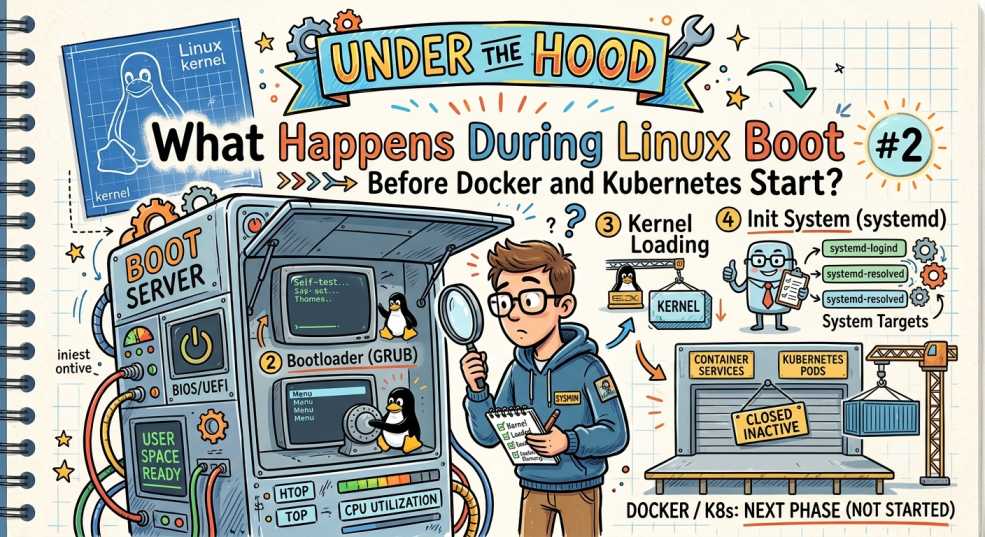
In the first article of the Under the Hood series, we uncovered one of Linux's biggest misconceptions: Load Average isn't CPU usage. Instead, it's a measure of work waiting to be completed, which explains why a server can have low CPU utilization yet still struggle under heavy load.
This time, we're going even deeper.
Every time you power on a server, laptop, or cloud virtual machine, Linux performs a carefully orchestrated sequence of events long before Docker launches a container or Kubernetes schedules its first Pod.
Most engineers only interact with a system after it's already running. We deploy applications with Docker, restart services with systemctl, or manage workloads using kubectl. Rarely do we stop to ask a much more fundamental question:
How did the operating system get here in the first place?
Understanding the Linux boot process isn't just an interesting piece of theory. It explains why servers fail to start, why Kubernetes nodes sometimes never become Ready, and why many production incidents begin long before your applications are involved.
By the end of this article, you'll understand exactly what happens between pressing the power button and running your first container, making Linux startup issues and many Kubernetes node problems far easier to troubleshoot.
The Common Misconception
Ask someone what happens when a Linux machine starts, and you'll often hear something like:
"You press the power button, Linux boots, and you're ready to go."
It sounds simple.
In reality, Linux hasn't even started when you first power on the machine.
Before the kernel executes a single instruction, several components work together to initialize hardware, locate the operating system, prepare storage, and launch the services on which everything else depends.
The startup sequence actually looks like this:
Power Button
      │
      ▼
BIOS / UEFI
      │
      ▼
GRUB Bootloader
      │
      ▼
Linux Kernel
      │
      ▼
initramfs
      │
      ▼
systemd (PID 1)
      │
      ▼
System Services
      │
      ▼
Networking
      │
      ▼
containerd / Docker
      │
      ▼
kubelet
      │
      ▼
Kubernetes Node Ready
Every stage depends on the one before it.
If any step fails, everything that follows fails too.
That's why a Kubernetes worker node stuck in NotReady often has nothing to do with Kubernetes itself. The real problem may have started much earlier during the Linux boot process.
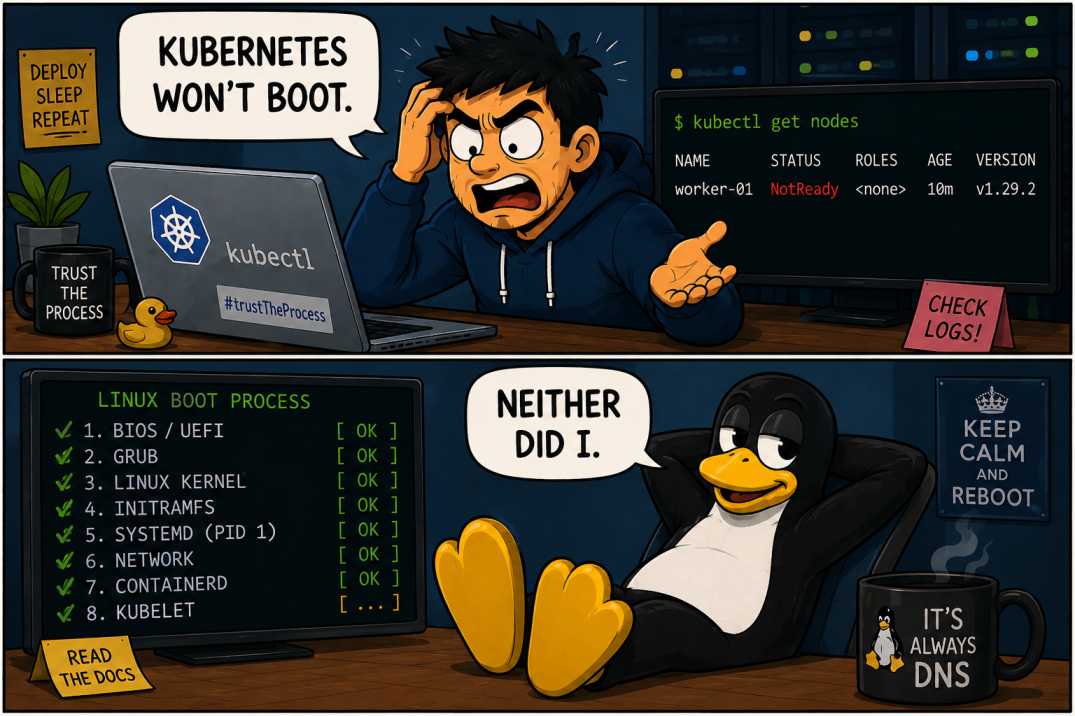
Once you understand this sequence, startup issues become much easier to diagnose because you stop treating "Linux boot" as a single event and start seeing it as a chain of independent stages.
BIOS vs UEFI: The Computer Wakes Up
The moment you press the power button, Linux still isn't running.
The CPU doesn't know where your operating system is. Memory hasn't been initialized, storage devices haven't been checked, and the hardware isn't ready for an operating system.
Before Linux can start, something has to prepare the machine.
That's the job of the system firmware.
Older computers use BIOS (Basic Input/Output System), while modern systems use UEFI (Unified Extensible Firmware Interface). Although UEFI is faster, more secure, and supports larger disks, both exist for the same reason:
Prepare the hardware and find something bootable.
The process looks like this:
Power Button
      │
      ▼
CPU Starts Firmware
      │
      ▼
Initialize Memory
      │
      ▼
Detect Hardware
      │
      ▼
Power-On Self-Test (POST)
      │
      ▼
Locate Boot Device
      │
      ▼
Load Bootloader
During these few seconds, the firmware:
- Detects the CPU and available memory.
- Initializes SSDs, HDDs, and other storage devices.
- Detects keyboards, network cards, and other hardware.
- Performs a Power-On Self-Test (POST) to ensure critical components are functioning.
- Searches for a bootable device.
Only after these checks succeed does it hand control to the bootloader.
Most of us never think about this stage because it usually completes in seconds.
But if you've ever seen errors like:
- No Boot Device Found
- Operating System Not Found
- PXE Boot Failed
The failure occurred here before Linux even had a chance to start.
The Linux Kernel Finally Starts
This is the moment Linux actually begins running.
Everything before this point was preparing the machine. Now the Linux kernel takes over and starts building the operating system.
Its responsibilities include:
- Initializing CPU scheduling
- Managing memory
- Loading essential device drivers
- Setting up interrupt handling
- Detecting storage devices
- Preparing the virtual filesystem
The startup sequence now looks like this:
GRUB
 │
 ▼
Linux Kernel
 │
 ▼
Memory Manager
Scheduler
Drivers
Filesystems
Networking
The kernel is the core of Linux. Every process, file operation, network packet, Docker container, and Kubernetes Pod ultimately depends on it.
Without the kernel:
- Docker cannot create namespaces or cgroups.
- Kubernetes cannot schedule containers.
- Processes cannot be created.
- Files cannot be accessed.
- Network traffic cannot flow.
This is why a kernel panic is one of the most serious failures a Linux system can experience. Once the kernel crashes, there's no operating system left to recover the machine.
Fortunately, the kernel doesn't start applications directly.
Before it can launch the rest of the operating system, it has one more critical job: finding and mounting the real root filesystem.
That's where initramfs comes in.
initramfs: The Temporary Operating System
One of the least understood stages of the Linux boot process is initramfs (Initial RAM Filesystem).
Most engineers never think about it until a server suddenly drops into an emergency shell during boot.
At this stage, the kernel is running, but it still doesn't know where the actual operating system lives.
The root filesystem could be stored on:
- An NVMe SSD
- A RAID array
- LVM volumes
- An encrypted disk
- An iSCSI device
- A SAN
- A cloud block volume
The kernel alone can't mount these devices.
Instead, it loads a tiny temporary filesystem into memory called initramfs. Think of it as a miniature operating system whose only purpose is to prepare the real one.
The process looks like this:
Linux Kernel
      │
      ▼
Load initramfs
      │
      ▼
Load Storage Drivers
      │
      ▼
Find Root Filesystem
      │
      ▼
Mount Root Filesystem
      │
      ▼
Transfer Control
During this stage, initramfs:
- Loads storage drivers
- Detects disks and partitions
- Unlocks encrypted volumes (if required)
- Activates RAID or LVM devices
- Mounts the real root filesystem
- Hands control to the operating system
Once that's done, initramfs disappears. Its job is complete.
Most boots pass through this stage so quickly that you'll never notice it.
But if Linux suddenly boots into an initramfs shell, it usually means the kernel couldn't locate or mount the root filesystem.
Common causes include:
- Corrupted filesystems
- Missing storage drivers
- Incorrect boot configuration
- Failed RAID or LVM devices
- Problems with encrypted disks
Many administrators assume Linux itself is broken.
In reality, Linux often hasn't reached a real operating system yet.
systemd: Where User Space Begins
Once the root filesystem is mounted, Linux reaches one of the biggest milestones in the boot process.
The kernel launches the first userspace process.
On almost every modern Linux distribution, that process is systemd.
It always starts as PID 1, and every other userspace process on the machine ultimately descends from it.
The sequence now becomes:
Kernel
      │
      ▼
Root Filesystem Mounted
      │
      ▼
systemd (PID 1)
      │
      ▼
Everything Else
Unlike the kernel, systemd doesn't manage hardware. Its job is to bring the operating system to life.
It reads unit files, resolves dependencies, and starts services in the correct order.
Some of the first services include:
- Logging
- Networking
- Time synchronization
- SSH
- Cron
- Device management
- Container runtime
- Kubernetes components
Rather than launching everything one by one, systemd starts independent services in parallel, which is one of the reasons modern Linux boots much faster than older init systems.
If you've ever run:
systemctl status nginxor
systemctl restart kubeletYou were interacting with systemd.
It's one of the most important components of modern Linux, yet many engineers use it every day without understanding what it actually does.
And if systemd never starts successfully, neither will Docker, containerd, kubelet, or your applications.
Before Kubernetes manages your workloads, systemd has already managed the operating system.
Common Mistakes
The Linux boot process usually only gets attention when something goes wrong. During an outage, it's easy to jump to the wrong conclusion. Here are some of the most common mistakes.
Mistake 1: Assuming Linux Starts Immediately
Pressing the power button is only the beginning.
Before Linux even starts, the firmware initializes the hardware, the bootloader locates the kernel, and initramfs prepares the root filesystem. If any of these stages fail, Linux never gets the chance to boot.
Mistake 2: Confusing GRUB with Linux
GRUB isn't Linux.
It's simply the bootloader responsible for loading the Linux kernel into memory and handing over control. If GRUB fails, the operating system never starts.
Mistake 3: Blaming Kubernetes for Node Startup Problems
When a Kubernetes node stays NotReady, many engineers immediately investigate Pods or the control plane.
But Kubernetes depends on several Linux services that must start first. If networking, containerd, or kubelet fails during boot, Kubernetes never gets the chance to manage the node.
Sometimes the problem isn't Kubernetes at all.
Mistake 4: Ignoring Boot Logs
Many administrators jump straight to application logs.
Commands like:
journalctl -bOften reveal failed services, driver issues, storage problems, and other boot-time errors that application logs will never show.
Mistake 5: Thinking Services Start One by One
Modern Linux systems don't simply start Service A, then Service B, then Service C.
systemd analyzes dependencies and starts independent services in parallel whenever possible, making the boot process significantly faster.
Understanding those dependencies often makes troubleshooting much easier.
Key Takeaways
Before Docker containers or Kubernetes Pods ever begin running, Linux has already completed a long chain of events.
Remember these principles:
- Linux doesn't start immediately after pressing the power button.
- BIOS or UEFI initializes the hardware.
- GRUB loads the Linux kernel.
initramfslocates and mounts the root filesystem.systemd(PID 1) starts the operating system's services.- Networking,
containerd, andkubeletall start before Kubernetes can schedule a single Pod. - Understanding this sequence makes troubleshooting startup problems much faster.
Once you know where each stage fits, you can quickly identify where a boot failure occurred instead of treating the entire startup process as a black box.
Conclusion
It's easy to think of Linux as something that simply "boots."
In reality, every successful startup is the result of a carefully coordinated sequence involving firmware, the bootloader, the Linux kernel, initramfs, systemd, networking, the container runtime, and finally Kubernetes itself.
Understanding that sequence gives you a huge advantage during troubleshooting. Instead of guessing, you can narrow the problem down to the exact stage where the startup stopped.
That's valuable whether you're diagnosing a laptop that won't boot, a cloud VM stuck during startup, or a Kubernetes worker node that never reaches Ready.
The next time a server refuses to start, don't begin your investigation with Docker or Kubernetes.
Start at the beginning.
More often than not, the real problem occurred long before your first container was ever created.
Next in the Under the Hood Series:
Under the Hood #3: How systemd Actually Starts Services
Every day, engineers run commands like:
systemctl start nginxBut what actually happens after you press Enter?
In the next article, we'll follow that command from the terminal to the moment the service is running, exploring unit files, dependencies, process management, restart policies, and why systemd has become the backbone of modern Linux systems.